Team accounts
How to add your team.
Invite your team to your VektaVPN plan. Everyone signs in with their own email and adds their own devices. You stay in charge of the plan and the billing.
The video has no sound.
Everyone gets their own login
No shared password. Each person signs in with their own email.
Every device gets its own IP
A US residential IP that only changes if you ask us.
You stay in control
Billing stays with you, and you see who uses each device.
Part 1 · If you own the account
Add your team members
Open your dashboard and click Add team members
It's in the menu on the left, and at the top next to Add Device.
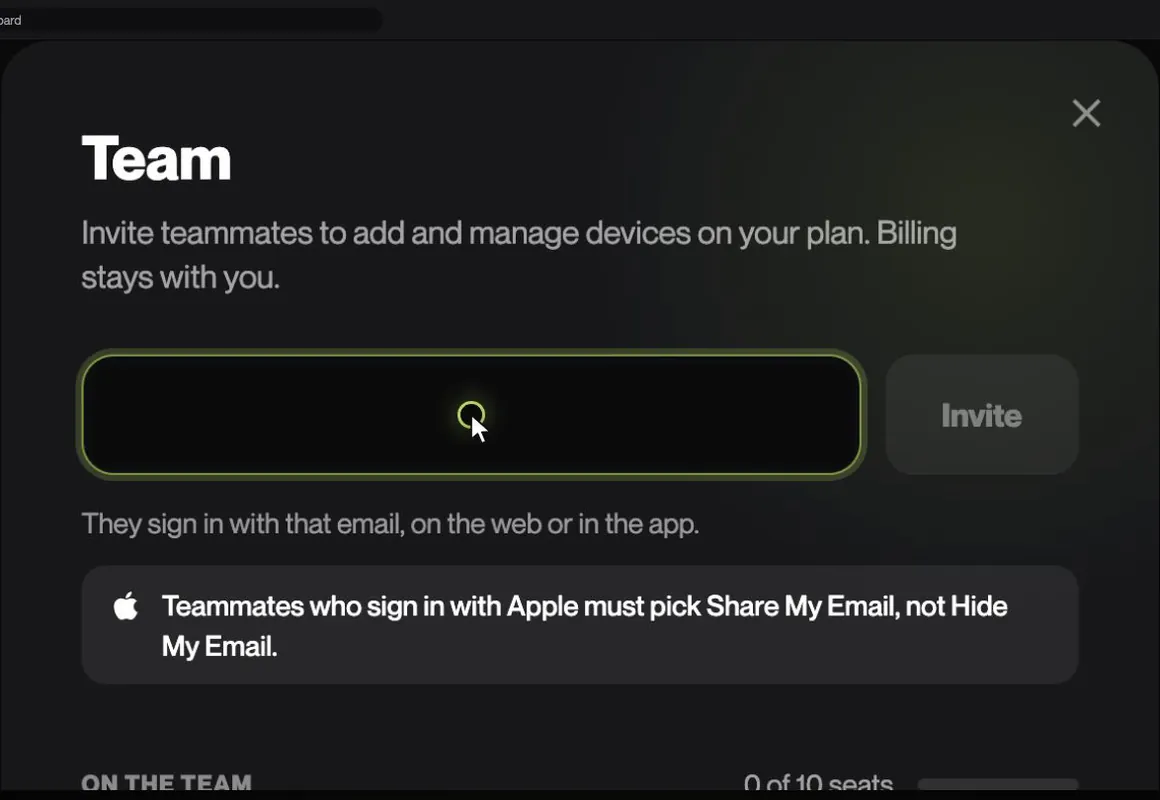
Type each person's email
Press Enter or type a comma after each address. You can invite up to 10 people at once.
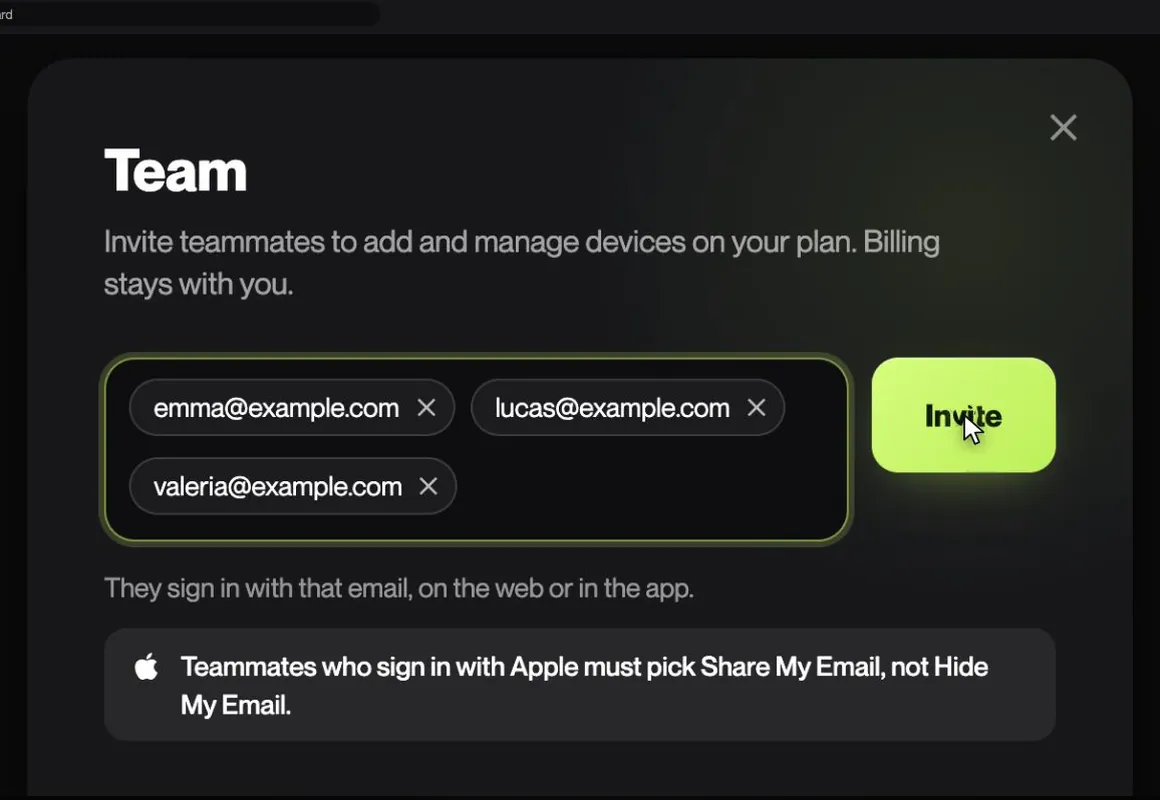
Click Invite
Each address shows Invite sent, and each person gets their invite by email.
See who has joined
Until they accept, they're under Waiting to join. If someone can't find the email, click Resend. Once they accept, they move to On the team.
See who uses each device
In list view, the Owner column shows whose each device is. Click the name to change it.
One tip before you invite
Ask them to sign in with the same email the invite went to. If they use Apple, they must choose Share My Email, not Hide My Email.
Part 2 · If you were invited
Join a team on a computer
You'll get an email from VektaVPN with an Accept invitation button. You can join on a computer or straight from your iPhone.
Open the email and click Accept invitation
If it was resent, open the newest one. Older links stop working.
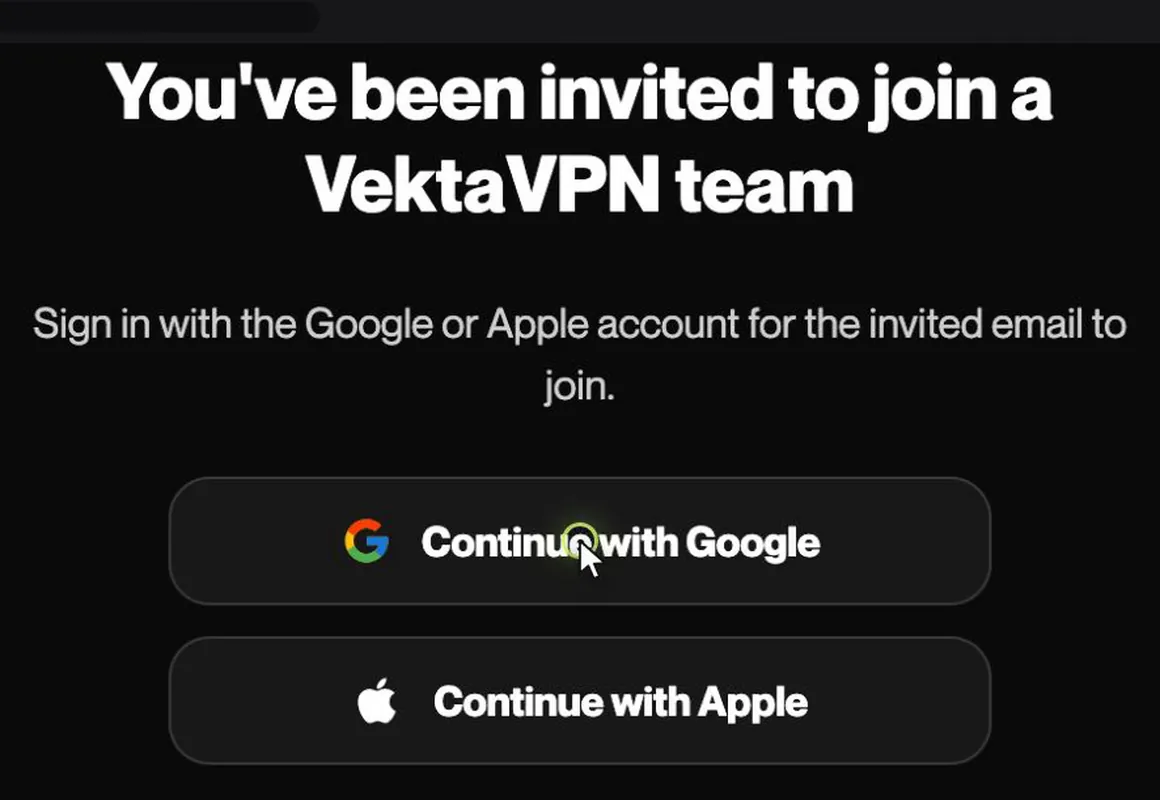
Sign in with Google or Apple
On the You've been invited to join a VektaVPN team page, pick the account for the invited email.
You're on the team
You'll see You're in. Opening your dashboard…, then your dashboard opens with You're on sofia@example.com's team.
Add your devices
Click Add Device and follow the steps. For Android, add it here and connect with the WireGuard app.
Part 3 · If you were invited
Join a team on an iPhone
Install the app and sign in with the invited email. You don't need to open the link first.
Install VektaVPN and tap I already have an account
In the current App Store version this button reads Login to Existing Account.
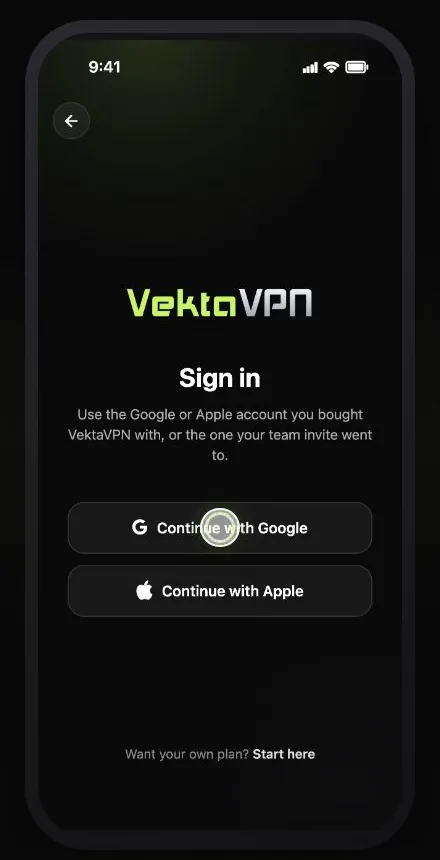
Sign in with the invited email
Tap Continue with Google or Continue with Apple. With Apple, choose Share My Email. That's how you join the team.
Tap Quick Connect
This adds the iPhone to the team.
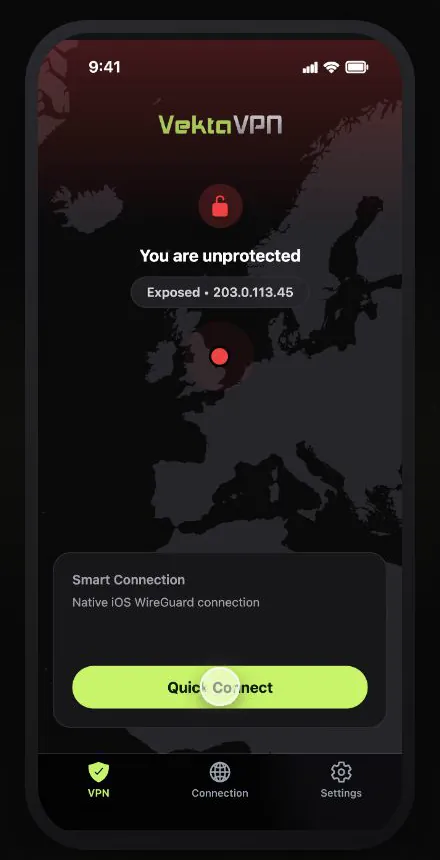
Pick your region and tap Connect
Only the first time. Then the iPhone asks to add the VPN configuration.
Wait a few minutes
We set up your dedicated IP. When you see Device Protected, you're connected.
Your team, in Settings
The team card shows everyone. Manage devices lists your devices and who added each one.
Part 4 · If you own the account
Remove a team member
Only you can remove someone. They lose access right away, and you choose what happens to the devices they added.
Open the Team window and click Remove
Click Add team members on your dashboard, then Remove next to the person's email.
Choose what happens to their devices
Keep the devices is already chosen: they stay on your account with the same IPs. Remove the devices disconnects everything they added and frees those device slots.
Click Remove member
They lose access to the team right away, and their seat is free for someone new.
Kept their devices?
A config file they saved keeps working until you click Get config on that device.
What your team can do
- Add their devices. Each one uses a device slot on your plan.
- See every device on the team and rename them.
- Remove a device or get a new config, only for devices they added.
- Leave the team whenever they want. Nothing gets deleted.
What stays with you
They can't see billing, change the plan, or invite or remove anyone. That stays with you.
Questions
How many people can I invite?
You have 10 teammate seats. You don't use one, but pending invites do. Need more? Write to us. Teammate seats and device slots are separate. Inviting someone doesn't add devices to your plan.
Does any device's IP change?
No. Inviting, joining, leaving or renaming never touches an IP. Every device keeps its dedicated US IP until you ask us to change it.
Can my teammates see billing?
No. They see the team's devices, their IPs and usage, and whether the plan is active. They can't see billing or change the plan.
How do I remove someone?
Open the Team window and click Remove on their row. Choose what happens to their devices and confirm with Remove member. They lose access right away.
What happens to the devices they added?
With Keep the devices, the default, they stay on your account with their IPs. With Remove the devices, everything they added disconnects.
My teammate used Apple and hid their email
Apple gives us a different address, so the invite doesn't match. Write to us and we'll sort it out with you. To avoid it, they should choose Share My Email from the start.
My teammate already has their own VektaVPN account
They can't join with that email. Invite them with another address or write to us. Each person can be on one team.
The invite expired
Invites last 3 days. Invite the person again, or use Resend while it's pending. Your teammate needs to open the newest email.
Add your team today
Open your dashboard and click Add team members.
The people, emails and IPs in these screenshots are examples.